Kubernetes Events Timeline: Visual Debugging for Busy Clusters
Kubernetes events are often the first clue when something goes wrong. A Pod fails to schedule, an image cannot be pulled, a volume mount keeps failing, or a deployment pauses halfway through a rollout. The Events API usually knows before the dashboard does.
The problem is not that events are missing. The problem is that they are hard to read at speed.
Most teams still start with:
kubectl get events --sort-by=.lastTimestampThat command is useful, but it gives you a flat list. In a real cluster, a flat list quickly becomes a wall of Scheduled, Pulled, Created, Started, BackOff, FailedMount, and FailedScheduling messages across many namespaces and resources.
A timeline view changes the shape of the problem. Instead of asking you to mentally connect timestamps and resource names, it lets you see cluster activity across time.
Why Kubernetes events are hard to read
Events are not logs. They are not metrics. They are Kubernetes control-plane breadcrumbs that describe important state changes and failures.
That makes them extremely useful for troubleshooting:
- The scheduler tells you why a Pod could not be placed.
- The kubelet tells you when a container was pulled, created, started, or restarted.
- Volume controllers tell you when attach or mount operations fail.
- Controllers tell you when ReplicaSets, Jobs, or Pods are created.
- Health checks show up as repeated warning events when probes fail.
The hard part is correlation.
When a rollout fails, you usually care about the sequence:
- Deployment starts a rollout.
- ReplicaSet creates Pods.
- Pods schedule onto Nodes.
- Containers pull images.
- Probes start failing.
- Restarts begin.
In raw event output, that story is split across different rows, sorted by time, often mixed with unrelated activity.
What a timeline view adds
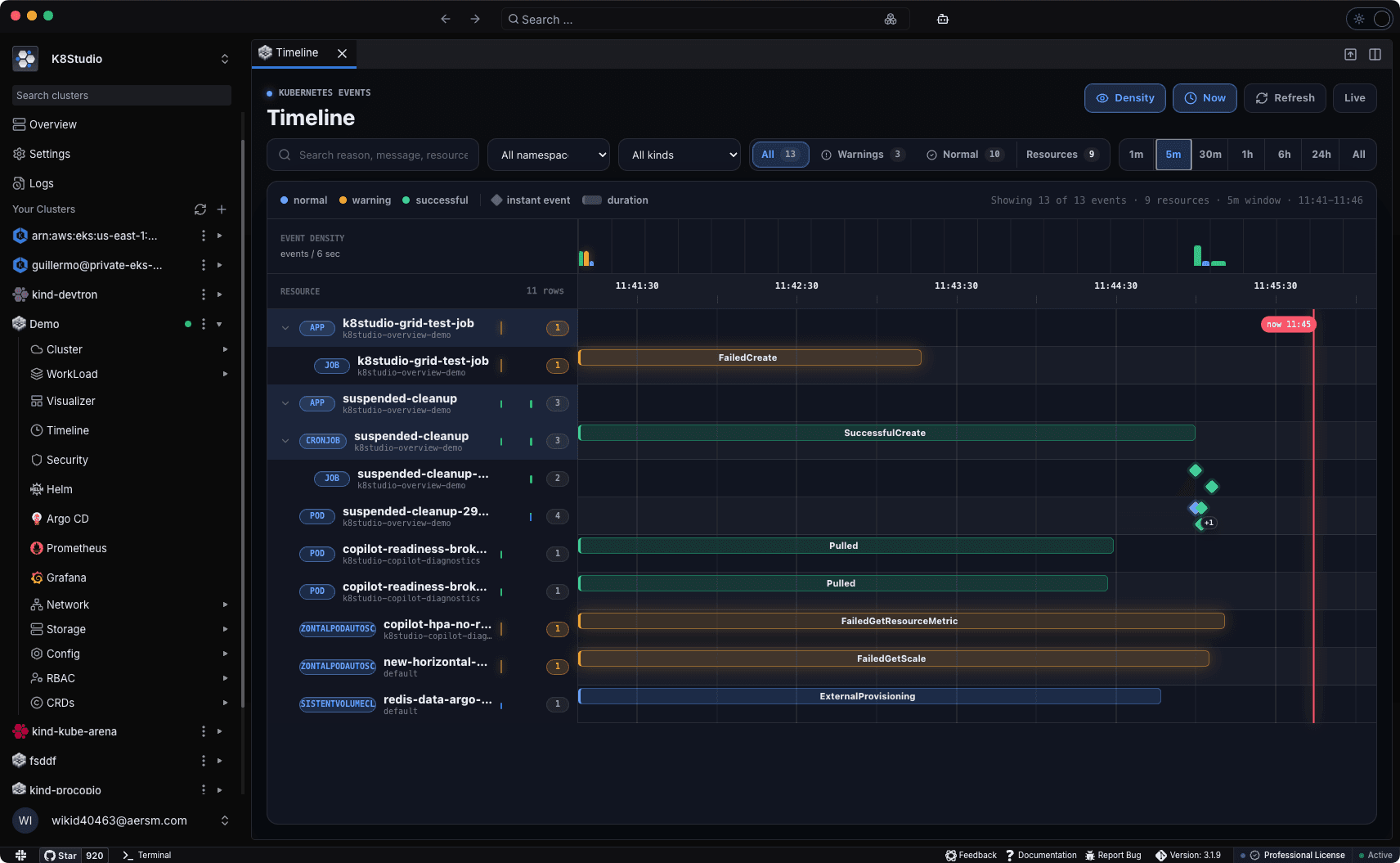
A Kubernetes events timeline takes the same event stream and displays it on a horizontal time axis.
The important shift is that events are no longer just rows in a list. They become visible markers in time.
This helps with three things:
- Sequence: You can see what happened before and after a warning.
- Duration: Repeated events can be shown as bars, not just repeated text.
- Grouping: Related resources can appear together instead of scattered through a flat list.
For example, a CronJob can be grouped as:
- CronJob
- Job
- Pod
A Deployment can be grouped as:
- Deployment
- ReplicaSet
- Pod
That grouping is important because many Kubernetes failures happen in the child resources, not on the parent object you started from.
Warning events become easier to spot
Normal lifecycle events are noisy but useful. They tell you that the cluster is doing work.
Warning events are different. They usually represent something that needs attention:
BackOffFailedFailedCreateFailedMountFailedSchedulingImagePullBackOffErrImagePullUnhealthy
In a visual timeline, warnings can stand out immediately. You do not need to scan every event reason manually. You can look for warning bands, warning points, and warning clusters.
This is especially useful during rollouts. A successful rollout produces a lot of normal events. A broken rollout produces normal events and warning events mixed together. The visual separation lets you see both patterns at once.
Instant events versus repeated events
Not every Kubernetes event has the same shape.
Some events are instant:
- A Pod was scheduled.
- A container was created.
- A container was started.
Other events repeat over time:
- A container keeps crashing.
- A volume keeps failing to mount.
- A probe keeps reporting unhealthy.
- A scheduler keeps failing to place a Pod.
Representing those repeated events as duration bars is useful because it answers a different question: how long did this problem continue?
That distinction matters during incidents. A warning that happened once five minutes ago is different from a warning that has been repeating for the entire deployment window.
Where this helps in real workflows
An events timeline is useful when the cluster is busy and the question is not just "what is wrong?" but "when did it start and what was affected?"
Good use cases include:
- Debugging a rollout that paused or failed.
- Finding the first warning in a chain of Pod restarts.
- Understanding whether a scheduling problem is isolated or widespread.
- Tracing a CronJob from schedule to Job to Pod.
- Seeing whether a node issue affected multiple workloads.
- Reviewing warning activity before and after a change.
It is also useful for onboarding. New engineers often struggle to understand the order of Kubernetes actions. Seeing events on a timeline makes controller behavior more concrete.
What to look for in a good timeline
A useful Kubernetes events timeline should do more than draw dots.
Look for:
- Namespace filtering.
- Kind filtering.
- Warning versus normal filtering.
- Search by event reason, message, or resource name.
- A density view for busy time windows.
- Grouping by resource hierarchy.
- Clear handling of repeated events.
- Tooltips or details for the full event message.
Without those controls, a visual timeline can become just another noisy dashboard.
Example: K8Studio Events Timeline
K8Studio 3.1.9 includes an Events Timeline that reads from the native Kubernetes Events API and displays events by resource and time window.
It is agent-free, so it does not require a DaemonSet, collector, or in-cluster installation. It uses the same cluster connection the desktop app already has.
The useful part is not just that events are visual. It is that events are grouped around the resources you are investigating, with warning activity separated from normal lifecycle noise.
That makes it easier to answer the operational questions Kubernetes operators ask every day:
- What happened first?
- Which resource was affected?
- Was this a one-time event or a repeated failure?
- Did the warning happen during the rollout or before it?
- Is this isolated to one Pod, one controller, or a wider part of the cluster?
Final thought
Kubernetes events are already one of the best debugging signals in the platform. The missing piece is usually presentation.
A timeline view does not replace kubectl describe, logs, or metrics. It gives you the event story first, so you know where to look next.
For busy clusters, that can be the difference between scanning a page of text and understanding the incident shape in a few seconds.
About the author
Alex Kube
Alex Kube writes practical guides for Kubernetes operators, platform teams, and DevOps engineers evaluating cloud native tools.
Comments
Comments are moderated before they appear.
No approved comments yet. Start the discussion.
More from KubeThings
Kubernetes Object Topology: Mapping Resource Relationships Without Guesswork
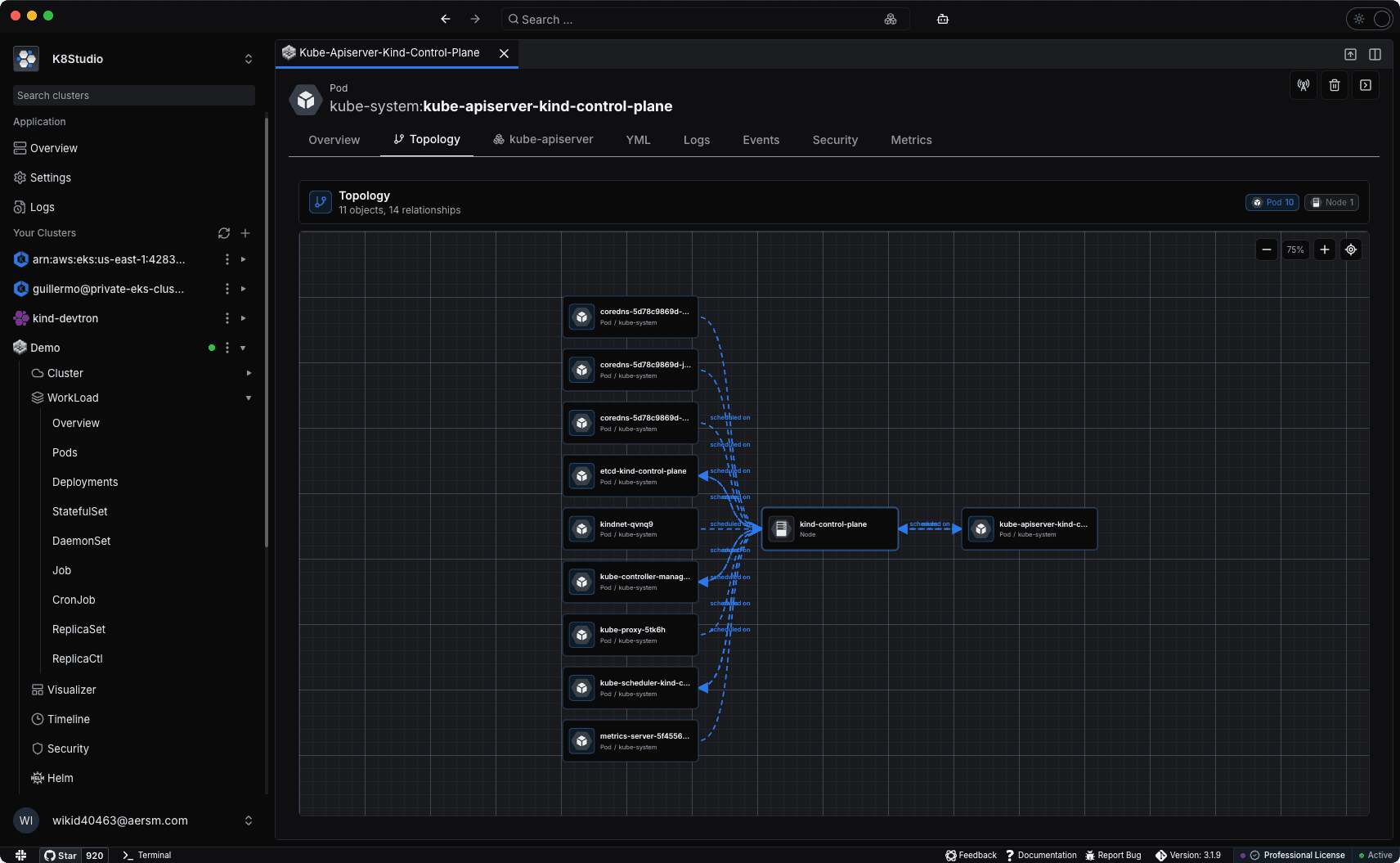
Understand Kubernetes object relationships across owners, selectors, references, Services, Nodes, ConfigMaps, Secrets, PVCs, and workloads without manually chasing kubectl output.
The Best Kubernetes Dashboards in 2026: Tested and Ranked
A practical comparison of Kubernetes dashboards after the official Dashboard retirement, covering K9s, Lens, OpenLens, Headlamp, Aptakube, K8Studio, Portainer, Rancher, KubeSphere, and Seabird.
Trivy
Great scanner. Loud defaults.
Trivy Is Overwhelming by Default. Here's How to Actually Use It.
Trivy is excellent, but its default output can be a vulnerability firehose. Learn how to filter unfixable CVEs, prioritize severity, and build CI gates people can actually use.